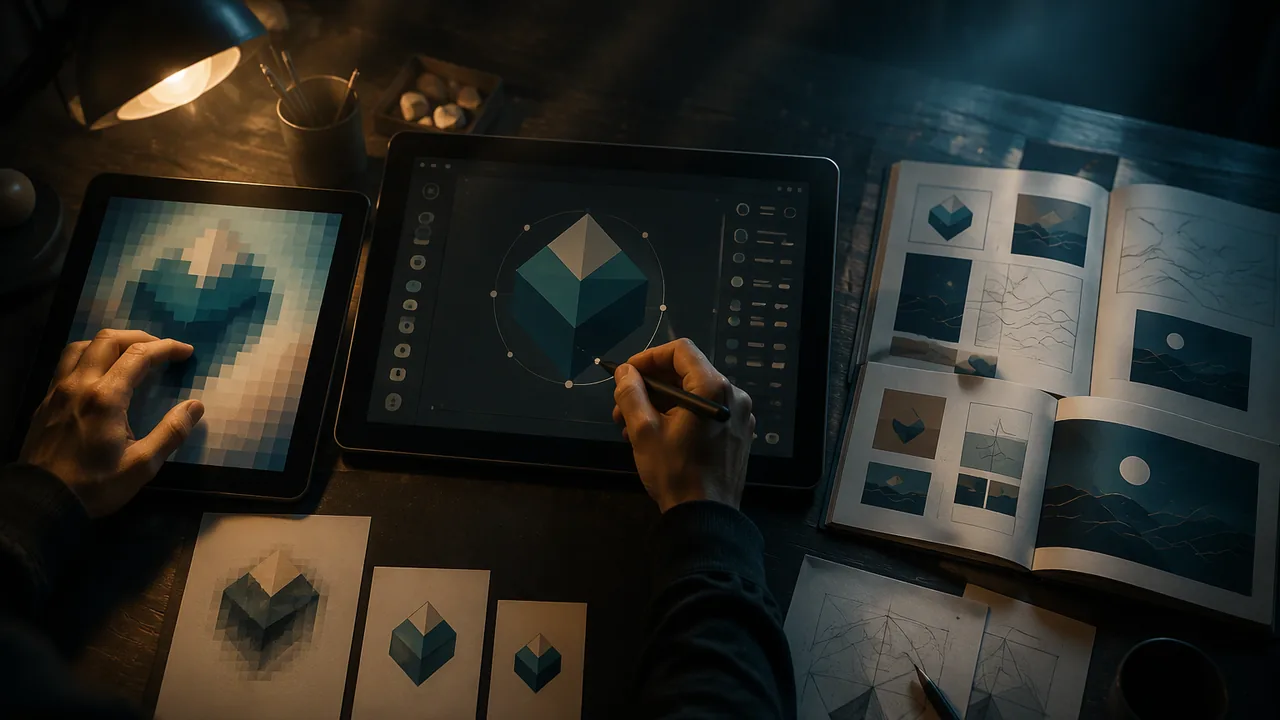
explain the difference between raster, vector and page-layout tools, choose the right tool and file format for a given job, and calculate how resolution affects print size and file size.
Instruction
Three kinds of software. Almost every design job uses one or more of three families of tools. Knowing which does what saves hours and prevents failed prints.
Raster (pixel) editors store an image as a grid of colored squares called pixels. Photographs are raster images. Raster tools are best for editing and combining photos, retouching, painting and textures. GIMP is a free, open-source raster editor; Krita is a free, open-source program built for digital painting and illustration. The commercial equivalent most studios use is Adobe Photoshop. The limit of raster images is that they have a fixed number of pixels: enlarge them too far and they turn soft and blocky.
Vector editors store shapes as mathematical paths: points joined by straight lines and curves, with fills and outlines. A vector logo can be printed on a business card or a billboard with perfectly sharp edges. Vector tools are best for logos, icons, type-based designs, diagrams and flat illustration. Inkscape is a free, open-source vector editor whose native format is SVG, an open web standard. The commercial equivalent is Adobe Illustrator. Vector tools are poor at photographs.
Page-layout programs arrange text and images across pages: magazines, brochures, books, reports and multi-page PDFs. They handle long text flowing between columns and pages, master pages, and precise print output. Scribus is a free, open-source layout program that can export print-ready PDFs; the commercial equivalent is Adobe InDesign. Most real projects combine the three: photos prepared in a raster editor, a logo from a vector editor, placed together in a layout program.
Hand tools still matter. Pencil, pen, marker and paper are the fastest way to think. Most professionals sketch before they open any software.
Resolution arithmetic. For print, divide an image’s pixels by the resolution you need. A 3,000 × 2,000 pixel photo at 300 ppi prints at 3,000 ÷ 300 = 10 inches by 2,000 ÷ 300 ≈ 6.7 inches. For a large poster viewed from a distance, a printer may accept 150 ppi, so the same photo could print at 20 × 13.3 inches. Pixel counts grow fast: that photo has 3,000 × 2,000 = 6,000,000 pixels, and at 3 bytes per pixel (one each for red, green and blue) it holds 18,000,000 bytes of image data, about 18 MB, before compression. Double both dimensions and you have four times the pixels, not twice.
File formats. Keep your working file in the program’s own format, which preserves layers and editability: XCF for GIMP, KRA for Krita, SVG for Inkscape, SLA for Scribus. Export a delivery file for the job. JPEG: photographs on screen; small files, but lossy compression and no transparency. PNG: screen graphics with sharp edges or transparency; lossless. SVG: vector graphics for the web. PDF: print, and sharing documents that must look the same everywhere. TIFF: high-quality print images. Never deliver a JPEG of a logo when a vector file is needed.
Color modes, briefly. Screens make color from red, green and blue light (RGB). Printing presses make color from cyan, magenta, yellow and black inks (CMYK). Some RGB colors, especially bright greens and blues, cannot be printed exactly. You will study this in Semester B.
Choosing. Ask five questions: What is the output (print, screen, both)? What kind of content (photo, shapes, lots of text)? Will it be scaled to many sizes? Who else must open the file? What does the budget allow? Free and open-source tools remove license costs and use open formats, but a studio you join may standardize on commercial software. The concepts transfer; the menus change. If you later work with licensed Adobe applications, you can also take the optional Adobe Certified Professional exams in Graphic Design & Illustration or Visual Design; they are separate credentials, and this course alone does not claim to prepare you for them. When you get stuck in any program, use the official documentation and user forums, and note which source solved the problem.
📖 Read for this lesson
The reading opens over the lesson; close it to come back to exactly where you were. The checks below draw on it.
Formative check
Work through these before moving on. They are not graded — they tell you whether the standard below has landed yet.
A client needs a logo that will appear on business cards, a website and a 10-foot banner. Which tool and format should you use?
A 2,400 x 1,800 pixel photo at 300 ppi prints at inches wide by inches tall.
Doubling both the width and height of an image in pixels doubles the number of pixels.
GIMP / Krita (raster)
Tap to revealPhotos, retouching, painting, textures
Inkscape (vector)
Tap to revealLogos, icons, type designs, diagrams
Scribus (layout)
Tap to revealMulti-page documents and print-ready PDFs
PNG
Tap to revealLossless screen graphics with transparency
JPEG
Tap to revealPhotographs on screen; lossy; no transparency
Print and fixed-layout sharing
How confident are you that you can choose the right tool and file format for a job and calculate print size from pixels and ppi?
Tools and Formats Sheet: Six Design Jobs Decided, with Print Sizes, Pixel Counts and File Sizes Calculated
SLS original decision table; arithmetic by SLS · SLS original
Why this reading. The lesson asks for a completed tool-and-format decision table for six design jobs, with calculations. The jobs and the working are supplied here. Every job is described so you can decide from the text. SLS original; all arithmetic shown. (1 MB is taken as 1,000,000 bytes.)
Rules used
Print size in inches = pixels ÷ ppi. Pixels = width × height. Uncompressed size = pixels × bytes per pixel: 3 bytes for RGB (one each for red, green, blue), 4 for RGB plus a transparency channel.
Six jobs, decided
| Job | Content, output, scaling | Tool and working file | Delivery file | Calculation |
|---|---|---|---|---|
| 1. A logo for business cards, a website and a 10-foot banner | Flat shapes; print and screen; scales from about 2 in. to 120 in. wide | Inkscape (vector), SVG | SVG for the web; PDF for print | A 10-foot banner is 120 in. wide; a raster logo 600 px wide would print at 600 ÷ 120 = 5 ppi. Vector has no pixel limit. |
| 2. Retouching a 3,000 × 2,000 px photo for a poster | Photograph; print | GIMP (raster), XCF | TIFF or PDF for print | At 300 ppi: 3,000 ÷ 300 = 10 in. by 2,000 ÷ 300 = 6.7 in. At 150 ppi: 20 by 13.3 in. Pixels: 3,000 × 2,000 = 6,000,000; × 3 bytes = 18,000,000 bytes, about 18 MB. |
| 3. A 16-page school newsletter with long text in columns | Text, photos, logos; print | Scribus (layout), SLA | Two-page spreads: 16 pages = 8 spreads. Text flows between columns, which the raster and vector tools do poorly. | |
| 4. A website banner, 1,200 × 400 px, with a transparent background | Sharp-edged graphic; screen | Inkscape, SVG | PNG (lossless, transparency) | 1,200 × 400 = 480,000 pixels; × 4 bytes = 1,920,000 bytes, about 1.9 MB before compression. |
| 5. A digital painting for a poster cover | Painterly texture; print and screen | Krita (raster), KRA | PNG or TIFF | To print 11 × 17 in. at 300 ppi: 11 × 300 = 3,300 by 17 × 300 = 5,100 px; at 150 ppi, 1,650 by 2,550 px. |
| 6. A photo of a school garden for a flyer | 2,400 × 1,800 px photograph; print | GIMP | JPEG for screen; PDF for print | At 300 ppi: 2,400 ÷ 300 = 8 in. by 1,800 ÷ 300 = 6 in. Doubling both dimensions gives 4,800 × 3,600 = 17,280,000 pixels, four times 4,320,000. |
Formats in one line each
JPEG: photographs on screen, lossy, no transparency. PNG: sharp-edged screen graphics, lossless, transparency. SVG: vector graphics for the web. PDF: print and documents that must look the same everywhere. TIFF: high-quality print images. Keep the working file (XCF, KRA, SVG, SLA) separate from the delivery file, and never deliver a JPEG of a logo when a vector file is needed.
Five questions to choose a tool
What is the output (print, screen, both)? What kind of content (photo, shapes, lots of text)? Will it be scaled to many sizes? Who else must open the file? What does the budget allow? Free tools (GIMP, Krita, Inkscape, Scribus) remove license costs and use open formats; a studio you join may use commercial equivalents, and the concepts transfer.